








Two Monitor Setup Guide: Desk Space, Mounting, and Alignment
Two monitors side by side. It sounds simple — plug in a second screen, drag some windows over, and you're done. But anyone who has spent a long day hunched toward a setup that was never properly planned knows the reality: neck tension that builds by the hour, eyes that feel like sandpaper by mid-afternoon, and a desk so cluttered with cables that finding your keyboard becomes a small victory.
A well-executed two monitor setup is one of the highest-leverage upgrades you can make to a workspace — whether you're grinding ranked matches, building out a streaming battlestation, or running a full professional workstation from home. The difference between a setup that works for you and one that quietly works against you comes down to three things: how much desk space you're actually working with, how your monitors are mounted, and how precisely they're aligned to your natural line of sight. This guide covers all three, with specific numbers and actionable steps rather than vague advice.
Why a Two Monitor Setup Changes Everything
The appeal of a dual monitor arrangement goes well beyond having more pixels on the table. When two screens are positioned correctly, your workflow shifts fundamentally — a primary display handles your core task while the second keeps reference material, communications, or monitoring dashboards permanently in your peripheral vision. For gamers, this means a game running full-screen on one monitor while Discord, stream controls, or system metrics stay live on the other. For professionals, it means no more Alt-Tab cycling through ten open windows while trying to stay focused on a single document.
Research consistently supports what seasoned multi-screeners already know from experience: fewer context switches and less time hunting for information translates directly into better output. The caveat is that the ergonomic benefits only materialise when the setup is done right. A poorly aligned two monitor configuration — screens too high, too close, or at uneven heights — creates constant micro-adjustments in your neck and eye muscles that accumulate into real discomfort over a full session. The goal of this guide is to get the physical setup right from day one.
How Much Desk Space Do You Actually Need?
Desk width is the first variable to nail down, and most people underestimate how much they need. Two 27-inch monitors placed side by side on standard stands will consume roughly 50–52 inches of horizontal space on their own — before you account for a keyboard, mouse, headset stand, or any breathing room between the screens. As a general rule, aim for a desk that is at least 55–60 inches (140–152 cm) wide for a comfortable dual 27-inch setup. If you're running two larger 32-inch panels, or if you like meaningful desk real estate in front of your keyboard, step up to 60–72 inches.
Desk depth matters as much as width, and it's the dimension people most frequently get wrong. Using two monitors means your total screen width is large enough that you need to sit slightly further back to take in both displays without constantly moving your eyes to their extreme edges. A depth of at least 28–30 inches (71–76 cm) gives you room to push monitors toward the rear of the surface, maintain the correct arm's-length viewing distance, and still rest your forearms on the desk comfortably while typing. A shallow desk forces your monitors closer to you than ergonomics recommend, which increases both eye strain and the neck rotation required to scan from one screen to the other.
If your existing desk doesn't have the footprint for a standard side-by-side arrangement, a monitor arm is often the solution rather than a new desk. Arms lift monitors off their stands and reclaim the depth those stands occupy, effectively giving you 6–8 extra inches of usable desk depth — a significant gain on a smaller surface. An L-shaped desk is another strong option for setups where one screen serves as a clear primary and the other handles reference tasks, since the corner placement naturally angles the secondary monitor toward you without any aggressive head turn required.
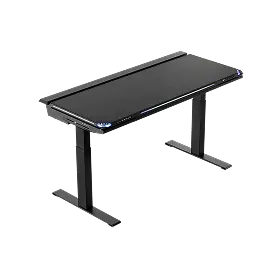
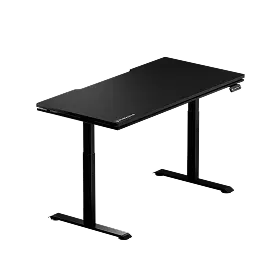
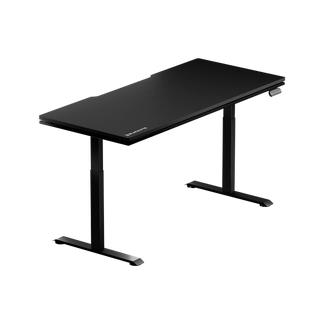
The Blacklyte Atlas Desk and Atlas Lite Standing Desk are both engineered with a generous work surface that comfortably accommodates dual monitor setups, with integrated cable management channels that keep the surrounding space organised rather than consumed by accessory sprawl; the Atlas adds a magnetic surface system on top of that. Height-adjustable operation on both desks also means you can dial in the exact viewing geometry for both sitting and standing positions — which matters more than most people realise once you start fine-tuning monitor alignment. You can compare both desk models side by side to find the right fit for your space.
Choosing the Right Mounting Solution
Your mounting choice determines how much positional freedom you have over each screen, and it has a direct impact on how much usable desk space you're left with. The three main options are monitor stands, single monitor arms, and dual monitor arms, each with meaningful trade-offs.
Monitor stands (the bases that ship with most monitors) are the simplest to use but the most restrictive. They offer limited height adjustment, no tilt beyond a narrow range, and their base footprints eat into desk depth. If both stands are different models, achieving a perfectly matched height between two monitors becomes frustrating. Stands work fine for casual setups, but they're the limiting factor in most ergonomically suboptimal dual screen arrangements.
Single monitor arms — one per screen — give you independent control over each monitor's height, tilt, swivel, and horizontal position. This is ideal for setups where the two monitors serve very different roles, such as a landscape primary and a portrait-orientation secondary for code or chat. Each arm clamps to the desk edge or passes through a grommet hole, which means no base footprint at all.
Dual monitor arms mount both screens on a single pole and are the cleanest-looking solution for side-by-side setups where the screens are similar in size. They reduce cable runs and create a unified, symmetrical aesthetic that suits a premium battlestation. The trade-off is slightly less independent adjustment freedom compared to two separate arms, so verify that the arm's range covers your specific monitor sizes and desired angles before purchasing.
Regardless of which mounting approach you choose, confirm VESA compatibility before buying. VESA mount patterns (most commonly 75×75mm or 100×100mm) are the industry-standard bolt hole configurations on monitor backs that arms and third-party stands attach to. Check your monitor's spec sheet — most modern displays support VESA, but some ultraslim consumer panels do not. Weight capacity is equally important; dual monitor arms need to support both screens simultaneously, so check the per-arm payload rating against your monitor weights with a margin to spare.
Monitor Alignment: Height, Distance, and Angle
Getting the physical alignment right is where most two monitor setups either succeed or fail. Three variables govern ergonomic alignment: height, viewing distance, and angle. Optimise all three and you can comfortably work for hours without the creeping neck and eye fatigue that plagues hastily configured setups.
Height
The top edge of each monitor should sit at or slightly below your natural eye level when you're seated (or standing, if you're at a sit-stand desk) in your normal working posture. This positioning means your gaze naturally falls to the centre and upper portion of the screen without tilting your head up or craning your neck down. Mismatched heights between two monitors are one of the most common ergonomic problems in dual screen setups — when the screens sit at different levels, your eyes and neck are constantly compensating as you shift focus between them. Use monitor arms or adjustable stands to ensure the top edges of both displays are level with each other, even if the screens are different sizes.
Viewing Distance
OSHA guidelines recommend a viewing distance of 20 to 40 inches (50 to 100 cm) from your eyes to the screen surface, with most ergonomists settling on arm's length (roughly 24–28 inches for most people) as a practical target for 24–27 inch monitors. For larger 27–32 inch displays, the 60–75 cm range is more appropriate — bigger screens benefit from slightly more distance so you're not constantly scanning across them with your eyes alone. Both monitors should be at approximately the same distance from your eyes; a secondary screen positioned significantly further away means you're unconsciously leaning forward to read it, which defeats the purpose of careful height calibration.
Horizontal Angle
Flat, parallel monitors force you to rotate your head fully to see the far edge of the secondary screen — a position that places sustained load on the muscles at the side and base of your neck. Angling both monitors inward toward you in a shallow arc reduces that rotation significantly. For most side-by-side setups, an inward angle of roughly 15–30 degrees per screen is sufficient to keep the secondary display readable with eye movement alone, minimising head turns throughout the day. The inner edges of both screens should sit close together so the transition from one display to the other requires only a short glance rather than a full pivot. OSHA recommends keeping secondary monitors generally within about 35 degrees to the left or right of your primary line of sight — a useful outer boundary to stay within.
Two Layout Scenarios: Symmetric vs. Primary/Secondary
The ergonomically correct position of your monitors depends heavily on how you use them relative to each other. There are two distinct usage patterns, and each calls for a different physical arrangement.
Symmetric (equal use): If you switch between both screens frequently and spend roughly equal time on each — common in trading, video editing, programming with a reference panel, or gaming with a live monitoring display — centre the two monitors on your body rather than on the desk. Push them close together so the bezel gap between them falls directly in front of you, and apply the inward arc angle to both equally. Your keyboard and mouse should be centred on your body directly below the seam between the two screens.
Primary/Secondary: If one monitor handles your main focus task and the other acts as a reference or communication display — the most common office and gaming scenario — position your primary monitor directly in front of you and offset the secondary screen to your non-dominant side at a gentle angle. The secondary display should require only a brief eye movement or minimal head turn to read, not a sustained rotation. Your keyboard and mouse should remain aligned with the primary monitor, not the centre point between both screens, so your arms, shoulders, and trunk all face your main task area naturally.
Cable Management for a Clean, Safe Setup
Two monitors bring two power cables, two display cables (HDMI or DisplayPort), and potentially a docking station, webcam, and audio equipment with them. Without a plan, the cable situation under and behind a dual screen setup becomes genuinely chaotic — and beyond aesthetics, unmanaged cables are a real safety and equipment risk, particularly on a sit-stand desk where height adjustments can snag a poorly routed cable and pull a monitor off the surface.
The foundational rule for standing desk cable management is to measure slack at maximum height before routing anything. Raise your desk to its highest setting, run your cables loosely along their intended path, and ensure you have at least 20–30% extra length beyond what the path requires. Cables measured at seated height will be pulled taut the moment you stand, which stresses both the cable and the port it connects to. Once you've confirmed you have enough length, bundle cables together by category (power, display, peripheral) using hook-and-loop cable ties rather than permanent zip ties, which make future changes painful.
Route everything through an under-desk tray or cable spine toward your PC or docking station, keeping the desktop surface itself as clean as possible. Position docks, hubs, and external drives close to the monitors they serve to minimise cable runs across the desk surface. The Atlas Desk and Atlas Lite Standing Desk both include integrated cable management systems and a built-in electrical socket, so your monitor and peripheral cables route cleanly through the desk structure itself — a significant advantage over adding cable management trays as an afterthought to a standard desk. You can explore the full range of Blacklyte accessories to round out your setup with complementary desk organisation solutions.
Chair and Posture: The Often-Overlooked Variable
Monitor alignment calculations are only valid relative to a consistent, supported seated position. If your chair doesn't hold you in a stable, upright posture, the height and distance calibration you've carefully dialled in will shift throughout a session as you slouch, lean, or twist. A premium ergonomic gaming chair is not a luxury component in a two monitor setup — it's the anchor that makes everything else work correctly.
The key adjustability features to prioritise are seat height, lumbar support, and 4D armrest positioning. Seat height determines where your eyes sit relative to the monitor tops — getting this wrong invalidates your monitor height setup. Lumbar support keeps the natural curve of your lower spine intact over long sessions, which directly affects how far forward your head drifts. Armrest height controls whether your shoulders stay relaxed or creep upward with tension over hours at a keyboard.
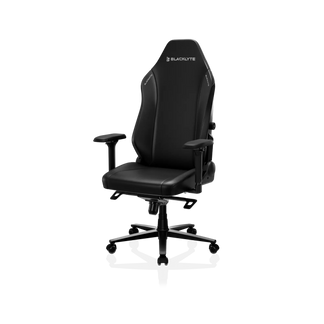
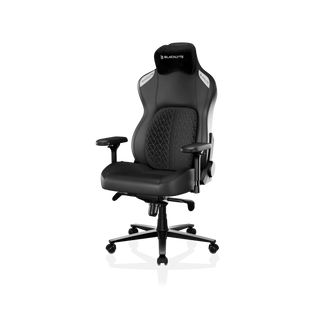
Blacklyte's full gaming chair lineup is built around these exact principles. The Kraken Pro occupies the high-end tier with a built-in floating lumbar with front/back fine-adjust and lock, DuraGen™ Leatherette upholstery, and an aluminum alloy base. The Athena Pro — Blacklyte's flagship chair — offers a built-in 4-way adjustable lumbar system (height and depth), memory foam over a contour-foam core infused with bamboo charcoal and silver ions, and an aluminum alloy base, all designed for extended high-performance sessions. Both models recline from 90° to 149° and ship with 4D armrests across the full lineup, giving you the positional freedom to match your chair to your exact monitor geometry. You can compare chairs in detail to find the model that matches your session length and ergonomic priorities.
For a deeper dive into workstation ergonomics principles, Blacklyte's Ergonomics hub covers posture, spinal alignment, and workspace calibration in full. Gamers specifically will find the Gaming Hub useful for translating ergonomic principles into a performance-oriented setup context.
Common Two Monitor Setup Mistakes to Avoid
Even with the right equipment, a handful of recurring configuration errors undermine the most well-intentioned dual screen setups. Here are the most important ones to sidestep:
- Mismatched screen heights. Two monitors at different heights create a constant micro-tilt in your neck as you shift focus between them. Always align the top edges, regardless of screen size difference.
- Screens too close. Monitors pushed to the front edge of the desk in an attempt to "see them better" actually increase eye muscle strain and promote forward-head posture. Push screens back to arm's length and increase font/UI scaling instead.
- Flat, unrotated screens. Parallel monitors with no inward angle force full head rotation to read the secondary screen. Even a 15-degree inward angle on each makes a measurable difference across a full working day.
- Keyboard misaligned with primary monitor. A common mistake after adding a second screen is leaving the keyboard centred between both displays. Align it with your primary monitor so your trunk, shoulders, and arms all face your main task naturally.
- Mismatched brightness and resolution scaling. When one monitor is noticeably brighter or has different text scaling, your eyes constantly recalibrate as they move between screens. Match brightness levels and use consistent UI scaling across both displays.
- Ignoring cable slack on adjustable desks. Cables measured and routed at seated height will be pulled taut at standing height. Always route and bundle cables after raising your desk to its maximum position.
- No lumbar support in the chair. An ergonomically dialled-in monitor arrangement is undone quickly by a chair that lets your lower back collapse. Consistent spinal support keeps your eye level stable relative to your screens throughout a session.
Building the Complete Blacklyte Setup
A two monitor setup done right is a system, not a collection of parts. Every component — desk dimensions, mounting choice, monitor alignment, cable management, and chair support — interacts with the others. Shortcut any one element and the gains from the rest are diminished. Get them all working together and you have a workspace that genuinely amplifies what you're capable of, whether that's a twelve-hour gaming session, a full professional workday, or both.
Blacklyte's ecosystem is designed to serve exactly that kind of holistic, performance-driven setup. The Atlas desk lineup provides the foundation: a spacious, cable-intelligent surface that adapts to both sitting and standing positions. The gaming chair lineup anchors your posture at every height. And the full Blacklyte product range — from chairs and desks to accessories — is engineered to work together so that every adjustment you make compounds rather than conflicts. Trusted by over 200,000 gamers across 50+ Countries & Regions and backed by partnerships with organisations including tournament organizer BLAST and teams like Team Liquid, Spirit, Vitality and Fnatic, Blacklyte builds for the standard that professionals actually demand.
Final Thoughts
A two monitor setup is one of the most impactful changes you can make to how you work and play — but only if the physical fundamentals are in place. Start with a desk that gives you genuine width and depth to work with. Mount your monitors with enough adjustability to match your exact eye level. Align them at arm's length, matched in height, and angled slightly inward so scanning between screens is effortless rather than exhausting. Manage cables before they manage your setup. And anchor everything with a chair that holds your posture consistently across long sessions.
Done properly, a dual monitor arrangement stops being something you manage and starts being something that manages your workflow for you — freeing up cognitive energy for the tasks that actually matter.
Ready to Build Your Ideal Setup?
Whether you're starting from scratch or upgrading an existing battlestation, Blacklyte's team is here to help you spec the right desk, chair, and accessories for your exact space and workflow.
Contact Us


